
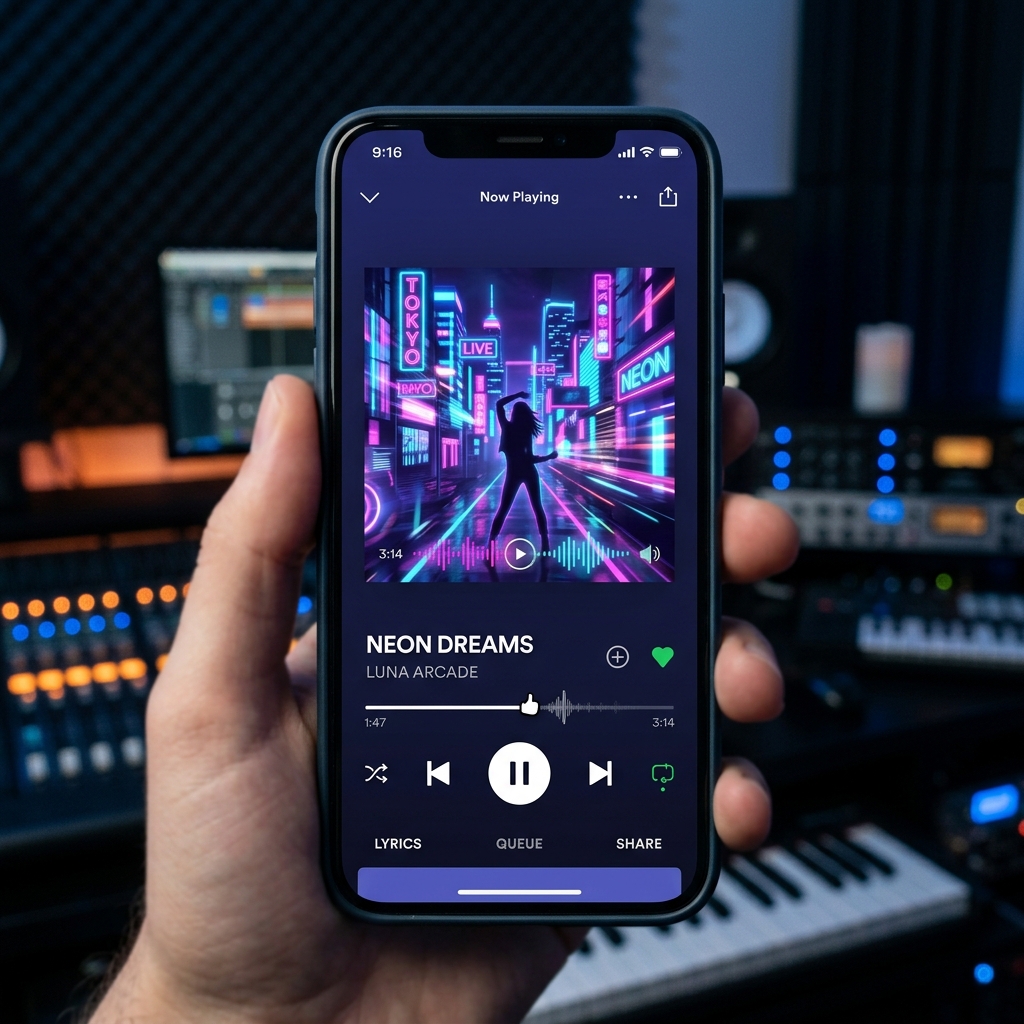
Spotify Canvas is an incredible visual tool that replaces your static album art with an 8-second video loop. It displays on the "Now Playing" screen of the Spotify mobile app, significantly increasing fan engagement.
📐 Mandatory Technical Specifications:
- ⏱️ Length: Exactly 3 to 8 seconds.
- 📱 Aspect Ratio: Vertical 9:16 (standard mobile ratio).
- 📐 Resolution: Between 720px and 1080px high.
- 📁 Format: MP4 files or static JPG images.
Step-by-Step Guide to Uploading Your Canvas:
- Log in to your Spotify for Artists dashboard.
- Go to the "Music" tab in the main menu.
- Click on the track you want to edit.
- Click the "Add Canvas" button in the top right corner.
Best Practices for an Outstanding Canvas:
- Avoid talking or singing: Since the clip is short (3-8 seconds), avoid clips matching mouth movements, as they will not sync with the lyrics.
- Avoid rapid cuts and flashing lights: Quick transitions can overwhelm the viewer.
- Safe Zones: Keep key elements centered. Mobile screens and playback controls will overlay the edges.
- Do not include text: Song titles and artist names are already overlayed by Spotify.
- Choose the right loop type:
- Continuous Loop: Has a seamless, endless loop transition.
- Hard Cut: Has clear edit points that can be cleverly disguised.
- Bounce: Plays the clip forward and then reverses it, ensuring a smooth loop.